/samsung-galaxy-S4

smartphonehere.blogspot.com/

sony-xperia

smartphonehere.blogspot.com/

iphone-5

smartphonehere.blogspot.com/

galaxynote/note2

smartphonehere.blogspot.com/

panasonic-eluga

smartphonehere.blogspot.com/

google-nexus-7

smartphonehere.blogspot.com/

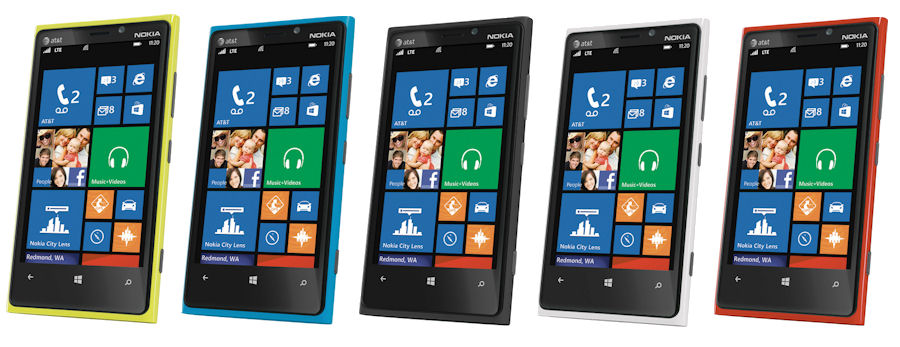
nokia 920

smartphonehere.blogspot.com/

galaxy-s4-samsung

smartphonehere.blogspot.com/

.popads.

1

3

1

//go.ad2up.com/afu.php?id=620618

ads3

//go.ad2up.com/afu.php?id=620410
Affichage des articles dont le libellé est TIPS. Afficher tous les articles

3 Tips for Tablet and Smartphone Users to Prolong Battery Power


When traveling frequently the battery consumption of your device of Smartphone might bother you. You might still be thinking about how to save on power or to find means for charging your Smartphone. The most essential thing to keep in mind is managing the battery power when it comes to your mobile devices. You need not be a technology genius to discover means for keeping the battery power running for long hours.
The best way is to discover the means to make the battery power last long by extending its power. Let us learn how to prolong your battery power with just three tips.
Following are the three essential tips to prolong battery power:
Turning off automatic exchange of data
Initially the most overlooked fact about your device or Smartphone is the unwanted power consuming programs that keep running. For example, Wi-Fi, Data exchange, GPS, these are such services that keep running on background and consume a lot of battery power. This results in battery drain. Remember, whenever your device is exchanging data through GPS or Online service the battery power of your device is being compromised. You can change the settings for these services by disabling them. Take for instance the automated e-mail exchange and updates that happen all day long. Another example can be apps like Google. Create settings to turn these off when not in use. Manually turn it off when you are done using these services.
Another battery-consuming feature is the screen light. If your Smartphone or Tablet screen is brightly lit all the time then it will soon drain out the power of the battery. It is advisable to dim the screen of your mobile device and create settings for standby mode; this comes handy when you have left your device idle. If you further want to manage battery power then opt for apps that help in indicating battery consumption. You can download apps like Battery Life Pro (iPhone), for Android users JuiceDefender and Battery Magic. Downloading an app like these will generate a list of programs or services that are consuming battery along with the exact percentage.
Portable power backup
It is not always possible to turn off the features, automatic e-mail fetching, notifications, especially when you are on a business trip. You need to be connected constantly with the latest business update. The best that you can do is to carry extra power. Carrying portable battery for your device is the best option for keeping your mobile device powered up for long and in situations where you do not get time for charging up.
Look for portable batteries so that you can connect it to your mobile device. If you are specifically looking for a Smartphone battery option then you can go with myCharge (Commerce Township). However, the best example of portable batteries are universal extended batteries these are compatible with all your mobile devices. You can even opt for a power pack that can help charge your mobile device like myCharge universal pack ($50) compatible with USB plug-ins and even Apple devices.
Another interesting thing that you can do is use a Snap-on battery. You can use the one provided by Mophie called Juice Pack it doubles up like a case and charger especially for iPhone users. Now you can charge and talk simultaneously. The pricing of this unit is around $80. As far as Android users are concerned PowerSkin is an option by Costa Mesa ($70).
If you are the one who is used to carrying multiple mobile devices for your business trip then you can go for a Powerbag ($140). This solar-powered backpack contains in-built battery for charging a laptop including 4 mobile devices. If you are specifically looking for a tablet-charging bag then you can go for Voltaic Systems (solar energy powered) priced at $300.
Drive and charge


Article Source: http://EzineArticles.com/7378531


Smartphone, Sad Battery! - Simple Tips to Save the Charge on Your Android


All of us have our flashy, shiny, multi-tasking androids, but we all know how pathetic the battery life is. With the number of apps and access to the web-world it offers, they obviously need lot of battery power to run on. iPhone, Android or any other Smartphone, only smart till it is alive. Once it is dead, your Smartphone is no good than a paper weight or if it's the thinnest phone, might work well as a book mark!
Get an app:

Smartphones have a lot of apps that run in the background eating up your charge and memory as well, making your phone run slow and lose charge sooner. There are enough free apps available on the Android market to kill these background apps to make your phone work longer and faster.
Display and Sound Settings:
Another basic reason for faster battery drain-out is the screen brightness. Switch it to half-bright mode or automatic mode, unless you are watching photos or videos. A couple of other things that help you save battery in this category of your android are vibration/haptic feedback notification and screen timeout. Use vibration mode only while in your ringer is on silent and the lesser your screen timeout time, the longer your battery will last.
Airplane Mode:
When you are camping or on a trek and you know you won't use your phone or when you know there is now coverage, switch it to the airplane mode. Instead of wasting battery on looking for network that doesn't exist you can use the android to click photos or enjoy some music. Because left alone, the Smartphone will keep looking for the network that doesn't exist wasting the juice!
Connectivity:
Some of the apps and games might stay connected to internet right under your nose, slowing down your phone and eating up battery. So, Wi-Fi and Bluetooth are better turned off when not being used, in data security point of view as well as saving the juice. No other function uses up your battery life the data connectivity does. Stay on the 2G network unless you need better and faster network, because the higher the connectivity the faster it drains-out the battery. And moreover, auto-syncing your email and refreshing Facebook every few minutes might prove to be very expensive!
Battery Management Apps:
Some smart apps available for your Smartphone that help you regulate the battery usage. These apps allow you to customize screen brightness, vibration/haptic feedback notification setting, data connectivity, and also set the screen timeout setting to save battery charge.
There are charging boosters available in the market that can get you some charge in emergency situations. There are some that charge your phone or some that you need to keep connected to power up your phone. These simple charging boosters use dry cell batteries or sometimes rechargeable batteries.
Or simply carry an extra charged battery, but make sure your phone allows you to replace its battery easily. There are certain phones that don't allow the user to access the battery.


100 iphone Tips


One of the biggest problems in this day and age is information overload. We all suffer from it. With phone calls, emails, Twitter, Facebook, radio, and TV our senses and our time is continually needed. Often the important things in life are missed or forgotten.
I totally understand this. I know that the easiest way and most advantageous way to provide you with the very latest tips and information is to send you one tip every day.
That's why I created the 100 iPhone Tips eCourse. Each morning you will find a great iPhone expert produced tip in your inbox. It will take you no more than a couple of minutes to read and to activate on your iPhone.
Within a very short time these tips will build into a great expert resource for you. You will build a library of thevery best tips and tricks that your iPhone can achieve.
read more click here


100 iPhone Tips eCourse

How to get the most out of your phone’s battery


A little over a year ago, we did an article on how to squeeze some extra battery life out of your phone. Most of those tips still apply, but Android has changed a lot since mid-2011, and I’m sure everybody could use a few extra tips on how to get your phone to last a few hours longer. A few of these things are simple, and have already been in past articles, but there’s a few tricks that most people don’t think about when they’re trying to conserve battery life. We’ll start with the basics and move up into the more complex things you can do to keep your device alive.

1. Pay attention to your screen.

The screen is the biggest culprit of battery drain. With newer screens pushing 1080p resolution, it takes a lot of juice to power those displays. You can’t remove pixels from your screen, obviously, so you’re going to want to pay attention to your brightness and your screen timeout. The brighter the screen, the more power it’s going to pull, so you’re going to want to keep that as low as you can stand it. Dim screens aren’t good for watching movies or using the device outside, though, so depending on your usage, your phone’s autobrightness may be the way to go. You can also use apps to lower the screen brightness below the minimum to manager your battery more effectively at night or in extremely dim rooms.  Night Mode is one such app, and it works extremely well. (Play Store link here)

Screen timeout is also important. If you set your phone down while answering a text and forget to turn off the screen, it’s going to chew through your battery if the timeout is set too high. Keeping this low (30 seconds or so) will keep things like that from happening. This can be a problem if the phone times out while you’re reading a news article, however. Samsung’s Galaxy line of phones has SmartStay, which fixes this by keeping the device awake only as long as you’re looking at it. An app called ISeeYou attempts to replicate that feature for those of you without a newer Galaxy phone.

2. Radios and phone signal

4G is one of the biggest new features to happen to cell phones lately, and it’s growing exponentially faster so more people can have access to those faster data speeds. There’s just one problem with 4G: battery drain. Specifically, LTE. HSPA+ is harder on the battery than any 3G, but not by much. LTE is a battery monster. It’s good for your battery life – and data cap – to be aware of when you’re on 4G and how much you’re using it. Sitting around the house and casually browsing the internet? WiFi is the way to go. Not at home, but not really using your phone to do any kind of serious downloading? Turn your 4G off.

This also applies to your GPS and Bluetooth on your device. If you aren’t using them, keep them turned off to avoid the unnecessary battery drain. GPS can be turned off in location settings, and usually from the quick settings tabs in many versions of Android. Bluetooth is also controlled through settings and quick settings.

3. Watch your applications.

Smartphones are powerful. They sync with Facebook and Twitter, they can do all kinds of word processing and run office apps, and they offer an excellent multimedia experience with games and videos. This probably won’t come as a shock to many of you, but if you watch Netflix on 4G on your phone’s 4.8-inch screen, it’s not going to last more than a few episodes. High-resolution games are even worse, but in addition to the cell signal, they’re also exercising your processor and GPU. It’s common sense, but if you need to make your phone last until you get home, avoid video streaming and games.

Sometimes, though, an application can chew up your battery without being active. Facebook, for example, has had notorious wakelock issues on phones while syncing. This can be easily checked by looking at your battery settings on your phone. The location of that is different for each phone, but it’s usually set up in its own battery menu, or in the about phone section. The graph there shows your phone’s awake time, and below that shows what apps are eating up battery. If your phone is constantly awake for eight hours and Facebook is using more battery power than your screen, you can probably figure out what’s going on.

Killing applications on Android has always been a hot topic. Irresponsibly using task managers to kill apps has always been a bad idea, and actually shortens your phone’s battery life. However, using a task manager to kill Facebook when it keeps your phone awake is definitely useful. A new feature in 4.0 and up is the revamped task manager/recent apps. Holding the home button or pushing your phone’s multitasking button will open several windows of all of your recent apps. A simple swipe will kill any particular application, freeing up some RAM and keeping a rogue app from destroying your battery.

4. Widgets and syncing

Killing Facebook after it’s kept your phone awake for two hours is a good reactive idea, but being proactive about it will keep the battery drain from happening in the first place. The more often your applications and widgets have to sync, the more often will have to wake up and lose some battery life. Social media and weather widgets are generally the worst offenders of this. If you check Facebook every three hours, don’t have it sync every fifteen minutes. Unless you’re really worried about the weather, you probably don’t need it to sync more than a few times a day.

5. Heat

This one’s weird, but it’s important to pay attention to. Because of how most phone batteries work, a high temperature will cause them to deplete faster. A lower temperature (within reason) has the opposite effect. If you work near a desktop computer at your job, don’t lay your phone in a cabinet with a roaring PC tower. It’ll get hot and the battery drains more quickly. On the opposite side of that, if you’ve been playing with your phone and the temperature has risen a bit higher than it should be, turn it off, take the battery out, and sit it somewhere cooler with some open air. Even a simple desk fan can do a bit to keep it cooled and running longer.

It’s very important that you do not freeze your phone. Dropping the phone or battery below a certain temperature is not good for it, and condensation can also ruin the hardware. Don’t go overboard with it.

6. Keep an eye out for low signal areas.

This was covered in the previous battery article also, but it’s worth mentioning now that we’ve got 4G in the mix. Low phone reception will cause your phone to constantly push for a stronger signal, which, in turn, sucks power from your battery. If you’re in an area that just doesn’t get signal, airplane mode might be your best bet until you can get to an area with a better signal.

But now that 4G has rolled out in many, many areas, there’s another dimension on this. If you live in a strong 3G area, but right on the outskirts of 4G coverage, your phone is going to act like it’s a low signal area and try to boost your 4G reception. Many people see their phones constantly move between 3G and 4G, and this is just as bad on the battery as a low 3G signal. This is another situation when managing your 4G, especially LTE, is helpful. Turn off the 4G radios and stick with 3G or WiFi until the reception gets better.

7. [Root] Block ads on your phone.

People know ads are annoying, sure, but not many people know ads can actually hurt your battery life pretty significantly. (Not to mention the privacy issues, but that’s an article for another time) Naturally, the more things your phone has to process and the more information that must come to it takes more power. Ads are no exception. Whether that’s on a website or in an application, it does have an affect on battery life.

There are several ways to block ads. On most apps, there are donate options, or paid apps to remove ads. This doesn’t always work on your favorite websites, however, so an ad-blocking app is the next best thing. AdAway is my personal favorite. It’s quick and painless, and totally automated. It blocks ads from applications, websites, and anything else that might try to stick an ad in your face.

8. [Root] Try a new kernel.

Sometimes, your phone just doesn’t do enough out-of-the-box. If you don’t mind a little tinkering, different kernels for your device can significantly improve performance and battery life. This all depends on your phone, however; a Nexus device is likely going to have a dozen kernel options, where a less popular phone may only have two or three. After rooting and unlocking your phone, flashing a kernel is usually pretty simple. Most are packaged like regular flashable zip files, but that can vary from phone to phone, so it’s important to read the instructions. XDA is an excellent source for learning about rooting, unlocking, and flashing your phone.

9. [Root] Adjust CPU speeds.

This is similar to using a different kernel, but it goes a little farther. On ROMs like Cyanogenmod, there are built in settings that allow you to change CPU governors and clock speeds. This essentially changes how much power your CPU is allowed to use and keeps it from running at full speed. The governors control how the CPU acts in different situations; a performance governor is going to ramp up the CPU all the time. Performance will be great, but the battery is going to suffer. Another governor I prefer is hotplug; it shuts down one core of a dual-core CPU when in sleep mode, which improves the idle battery life. There’s tons of different governors and clock speed combinations, so like changing kernels, it’s a good idea to read up on what each one does. XDA also provides some tutorials on this.

An alternative is an application to control your CPU. Not all ROMs have CPU controls built in, so an application like that can manage the clock speeds and governors if your phone is rooted. All of the same rules apply. Higher clock speeds mean faster, more battery draining performance. Lower clock speeds mean worse performance, but less power consumption. The trick is finding a middle ground where you can live with the performance and can see the extra battery life.

10. [Root] Try a new ROM.

Sometimes, the stock software from Samsung or HTC just might be optimized for battery life. It’ll have some features that you find a little superfluous that causes battery drain. If all else fails, flashing a new ROM onto your phone may be your best option. AOSP-built ROMs like Cyanogenmod provide an alternative to OEM-bloated stock ROMs. This can help with the battery life in many cases because there are less system applications and features that hog resources on a custom ROM like Cyanogenmod. There are even customized OEM ROMs that are optimized to reduce battery drain and bloat. Again, XDA is likely your best friend when trying this out.

Many of these ROMs also come with their own custom kernels. Together, they really can improve battery life well past what the phone is capable of on stock software. Mixing kernels with custom ROMs is also a great way to tweak your setup to get the best possible performance and battery life.

11. The worst case scenario: using spare and extended batteries.

Sometimes, your phone is just not going to perform as well as you’d like. Some phones just do not have great battery life, as was the case with the abysmal Verizon Galaxy Nexus, and no amount of lowered screen brightness or custom ROMs or tweaking is going to extend it by more than an hour or two. If you have a phone with a removable battery, consider buying an extended battery, or a spare battery or two if you don’t want the added bulk. As a CDMA GNex owner, I own three spare batteries that I swap out during the course of an 8-hour work day. It’s not the perfect solution, but it is a viable way of using your phone throughout an entire day. Of course, this only works if your phone supports a removable battery, and lately we’ve seen the trend of sealed in batteries in newer smartphones.

This is by no means an all inclusive list of battery tips. Searching the internet is going to pull up a ton of other tips for getting the most out of your battery, especially for rooted users, and some of these tips may work better for some phones than others. Hopefully, though, this list will give you enough to get started on tweaking your settings to get some longer battery life, and will help you be a little more mindful of how you’re using your battery and what applications and syncing are doing to it.


12 tips to become a better smartphone photographer


Hernandez offered these tips:

1. It's all about the light. "Photographing in the right light -- early morning or late evening -- has the potential to make the most 'boring' situation into a spectacular one!"
2. Never use the mobile zoom. "It's terrible and the first step to an unsuccessful image. If you want to get close, zoom with your feet! Get close and your images improve," he said.
3. Lock your exposure and focus. Your photos will improve 100%, Hernandez said. "With the default camera app, you can tap and hold on the screen to set where you want your exposure and focus. Once the box "blinks," it's locked. You can also use other apps like ProCamera to separately set and lock the exposure and focus.
4. Silence your inner critic. "See if you can go one day of shooting every time your inner voice says, 'I'd like to take a picture.'"
5. Edit, edit edit. Restrain yourself from sharing everything. Post only the best, and your audience will grow. "We don't need to see all 10,000 of your ugly children," he said. "I try and pick my least ugly. it's hard to choose and very personal."
6. Technical proficiency is overrated. "Exercise your power of observation. Learn to look and see deeply."
7. Filters don't replace a good eye. "You still need the basics. Look for the moment and light and subject. If you choose to add a sepia, black and white or other nostalgic or creative filter later [with an app such as Instagram or Hipstamatic], that's OK, but remember lipstick on a pig, it's still a pig." And if it's for journalism, he added, "then it needs to be unfiltered."
8. Shoot from the hip for better candids. "Hold the phone about waist-level and tap away. Your friends and family will not know what you're doing. Be sneaky about it. The moment they know you're shooting, the images become less candid. You'll get a lot more bad shots, but when you get a good one, you'll want to hang it on the wall!"
9. Give yourself assignments and deadlines. Take 20 images of one thing from different angles. You'll begin to see the world differently, even if it's just walking around the bowl of fruit on your kitchen table and observing how the light falls on it from different angles.
10. You have to know what you want to see before you can see it. "Make a list of things you want to photograph today and find them! If you know my work, then you know the No. 1 thing on my list are men in fedoras! Or any hat for that matter!"
11. Study other photographers. "I spend an unhealthy amount of time looking at images. It's the only way to get better, in my humble opinion. My favorites are Roy Decarava, so happy we discoveredViviam Maier, and on Instagram, a dude named Daniel Arnold out of New York is just killing it!"
12. Always be ready. "You want to make sure that when your mind and heart says 'shoot,' you have no excuses, like, Oh, my camera was in my purse, pocket, or, gasp, your camera wasn't around. It's one of the main reasons I love mobile photography -- my camera is always with me."


10 Tips To Conserve Your Smartphone Battery


Here are 10 essential tips how you can conserve your smartphone’s battery.

1. Turn Off Vibrations

Vibrations are great for notifying you about incoming calls or messages when you’re in the theatre, meetings or other places where it’s necessary to keep the phone silent. In places where it doesn’t matter, it will be better for you to use your ringtone as notification if you want to keep your smartphones on longer.
Vibrations actually use up more power than ringtones. The sounds produced by ringtones are just very tiny vibrations in your smartphone’s speaker. Compare that to the shaking of the entire phone via vibrating a smart weight, playing a ringtone definitely zaps less of your battery. The same applies for using vibration for tactile feedback. If you don’t think it’s necessary, then disable vibrations or at the very least, lessen the magnitude of the vibrations.

2. Dim Your Screen

This one tip affects battery life drastically. It’s obvious that dimming your screen will reduce your smartphone’s power consumption since we all have to activate the screen whenever we use our phones. If our screen is brightly lit up every couple of minutes when we check our emails and such, it eventually will zap battery juice. Auto-brightness setting enable the smartphone to adjust the brightness to its optimal level for reading while conserving battery life.

On the other hand though, you may consider tuning the level permanently to the dimmest level that you can still read under without straining your eyes. Doing so may do wonders to your battery life in the long run.

3. Shorten Screen Timeout

In the same manner, if you wish to minimize the power consumption of your smartphone of the screen display, you ought to consider shortening the screen timeout. This decides how long the screen will remain lit after you finish interacting with it.
Some of us do not have the habit of ‘locking’ the phone after we we are done with it; we just let it go lights out by itself. Keeping the timeout duration short will ensure that the phone doesn’t waste power when you’re not using it.

4. Switching Off When Inactive

Although it is true that turning on your phone consumes more power than unlocking your phone,switching it off for a couple of hours can save more battery than leaving it on sleep or inactive mode. If you know you’re not going to touch your phone for an extended period of time, such as when you’re attending a meeting or sleeping, you can actually cut down a significant amount of energy consumption if you simply switch it off.

You might be wondering why you should even bother about battery level when you’ve a charger with you at home while you sleep. Well, the thing is that repeated charging for certain kind of batteries eats up the battery volume. For such batteries, the best way is to conserve as much as you can so that your battery retains its original capacity as much as possible.

5. Charge Your Battery Correctly

Speaking of phone charging, there are generally two kinds of rechargeable batteries commonly used for smartphones: Lithium-ion (Li-Ion), and Nickel-based batteries: namely Nickel-Metal Hydride (NiMH) and Nickel-Cadmium (NiCd).
The battery capacity in NiCd batteries are reduced every time you recharge them. Nonetheless, NiCd batteries have longer life cycles i.e. they can be recharged more often than NiMH batteries before stop working. Nickel-based batteries should be charged (to the full amount) when they’re more or less out of power, and not when there’s still a good amount of energy left.

Li-Ion batteries have the longest life cycle among the three types of batteries but they also need to be charged more frequently (even when the battery is not fully used up) to maintain its original capacity. To keep your battery lasting longer, find out more about the type of battery that your smartphone uses and maintain the appropriate charging strategy for optimum usage.

6. Close Unnecessary Apps


Some of us open app after app and don’t bother to close them even after we no longer need to use them. This multi-tasking capability is a common feature of smartphones, but it is also a main reason why battery life gets drained away easily. The worst thing is that you’re losing battery juice when you are not even using them. Leaving them open will leave your battery at half-bar in no time.
As often as possible, kill your apps if you are not using them. There are some valuable apps out there that manage the multitasking ability of your smartphone to ensure it performs at its best to conserve battery life without jeopardizing usage. One such Android app is the Advanced Task Killer.

7. Disable GPS

Certain apps eat up more battery juice than others, particularly apps which utilize the GPS system to track your location. Your smartphone has a GPS unit that allows the sending and receiving of signals to and from satellites to determine your exact location, which is integral for some apps to work, for example, map-based apps like Google Maps or to check-in on Facebook.
(Image Source: Fotolia)

When left running in the background, some of these apps may continue to send and receive signals. It takes a lot out of your battery to continuously do that, even if you aren’t aware of it. Hence, you should ensure that those particular apps are closed when you really don’t need them. A more extreme way is to disable location services when prompted by these apps. It may slow down the efficiency of these apps but you won’t be tracked on your location and some users deliberately do that for privacy reasons.

8. No Bluetooth, Wi-Fi, 3G/4G When Not In Use

Energy is consumed whenever your smartphone searches for signals, Wi-Fi, 3G or Bluetooth etc. When the reception is poor, the phone will continue scanning to attain a good connection.Repeated searches for these signals can easily make your battery level drop a notch.
What I’m saying is that you should turn off your Wi-Fi or Bluetooth when you don’t need to be connected. One convenient way to do it is to switch to ‘Airplane Mode’ or just switch your phone off when you know you can’t get any signal.
On the other hand, when you need good reception for your smartphone, place or position your phone in high connectivity zones. This will prevent your smartphones from constantly seeking for a connection and wasting your precious battery power switching from one signal to the other.

9. Minimize Notifications

With constant connectivity to the Internet, we tend to get notifications on our smartphones all the time, be it updates on the latest news, emails, high scores from games, add-ons for apps etc. But I’m sure that you would only want to be notified on the more essential stuffs like new text messages, or messages from Whatsapp.

Not only is it annoying to constantly receive irrelevant notifications that can actually wait, it is also a powersucker for each of these notifications. Every incoming notification will light up your screen, make a sound alert or vibrate.
Manage your settings well and disable unnecessary notifications to save a little battery power (and avoid being frustrated with these constant notifications).

10. Maintain Cool Temperature

Some of us might have observed that our battery runs out faster when our smartphones are warm. Put simply, don’t leave your smartphones under direct sunlight or in any place that is hot.
One of the more common occurrences would be leaving the smartphone in a car parked under the sun. The battery will function optimally in cooler environments, so do look out for, and try to avoid, scenarios where your phone is exposed to unnecessary and excessive heat.